Saturday, November 3, 2012

App for That #4: Skitch

App: Skitch
On iPad and other i devices, also available for Android devices.
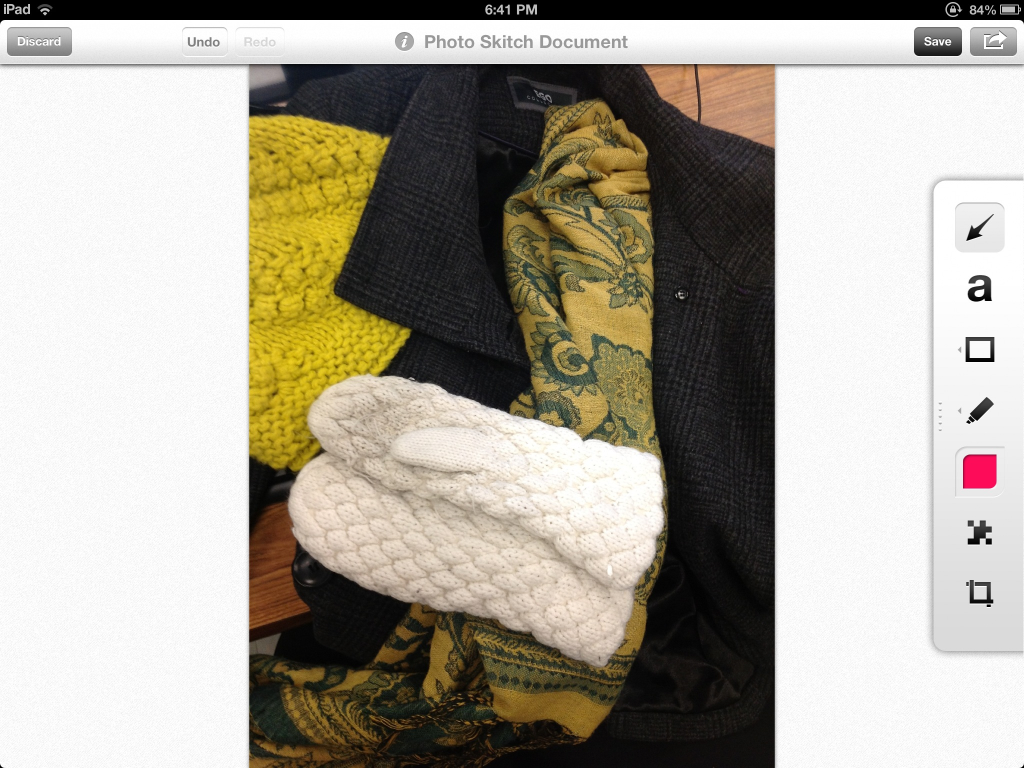
A screenshot if Skitch on my iPad

Cost: Free

Grade Level: Kindergarten - Grade 5

What it does: Skitch is an app that allows you to label and type text right over a picture, map, webpage or screen shot, to make your point more clear.

How's the App:  I love this app, in particular because of its simplicity and ease of use for early years students.  You can either take a photo or screen cature from your iPad, upload a photo, website image or map, or start with a blank canvas.  Once you have your photo in, you can draw an arrow, create a box or circle around a portion of the photo or draw on it.  There is the option to have the text, arrow or drawing be one of 6 colours, so there are some options, but not an overwhelming amount.  The most interesting feature I found was the blur button, which allows you to blur a section of the photo.  This is great for privacy as students can use a photo of themselves, or their classmates and blur out the faces to make them anonymous.  The one draw back is that in order to save your Skitch diagrams, you must also download Evernote, but that program is also free and useful, so it wasn't a big deal for me.
A sample of what I did with Skitch in under 10 minutes

What it could be used for: Students could use this to show their understanding of a topic through labeling a photograph.  It is a different way to explain their learning to someone else in a visual way.  You could ask students to find photos to represent a specific topic, patterns for example, and once students have taken the photo, they could open it in Skitch and label the pattern to explain their thinking.  As a teacher, Skitch allows me to take screen shots on my iPad, which I can then use to create tutorials about a program, or a slides shows in which I want to highlight a certain aspect of each slide.

Rating: 5 out of 5

App for That #3: Garage Band

App: GarageBand for iPad

Cost: $4:99 US

Grade Level: grade 5 - beyond, or teacher directed

What it does: GarageBand is a music creating program, that allows you to use their pre-selected instruments, your voice, recorded music and some live instruments to create music and/or podcasts.

How's the App:  This app has a steep learning curve, but once you have played around with it a few times it gets easier.  This is definitely not an app I would have my grade 2 students use independently, but I may have them record their voices on it, and do the editing after school.  As a former pianist, I love that if I want to add a piano sound that I can select a keyboard and the keys respond not only my touch, but also to how hard I press.  If I had used GarageBand a lot prior to getting the app, I am sure it would have been more intuitive to me from the start.  That being said, if you are not afraid of pressing various buttons just to see what they do, then you can figure it out fairly quickly.  Of the music production programs I have seen, GarageBand seems the easiest to understand, and provides samples of various genres and instruments, so that even if you don't read music or play an instrument, you can still create beautiful music.  Incidentally all the podcasts created for my mobile learning course were created with GarageBand.

What it could be used for: This could be used to allow students to create their own podcasts, or for teachers to assist students in doing so.  It could be used in a music production class to create on original or remix a popular song.  If students are creating a video, they could use it to create a song for background to their movie (and I believe that iMovie allows you to drop the song from Garage Band right into its program).

Rating: 4 out of 5

App for That #2: The Heart and the Bottle

App: The Heart and the Bottle - story app for iPad

Cost: 5.99

Grade Level: Kindergarten to grade 3

What it does: The Heart and the Bottle is a children's story written and illustrated by Oliver Jeffers.  It is about a little girl who gets hurt and hides her heart in a bottle so she will never be hurt again.  This is a book that my students love, and so I wanted to see if the material was enhanced with this app.

How's the app: All in all the app works alright, but not great.  There is an option to have the story read to you, which is great, and the music fits the story.  The app also offers hidden animation and activities throughout its pages that can be discovered.  There is also a hint button to help those with less patience.  The idea behind each of these hidden activities is nice, however the app itself is glitchy and often there is a delay with the animation.  Sometimes the animation and the sound don't match making it more frustrating than fun for little fingers.  I would have to say that this isn't an app I would recommend to others based on the glitches, and it does make hesitant to purchase other book apps.

What it could be used for:  Drawing in reluctant readers, or allowing beginning readers to enjoy a book that would be difficult for them to read on their own.

Rating: 2 out of 5

App for That #1: Voice Thread

App: Voicethread for iPad

Cost: Free

Grade Level: 2rade 2 - University

What it does: Last year I explored Voicethread on my PC as part of my technical knowledge component (you can see my review of it here).  It is a great tool, as it allows you to add photos, video, text, and voice recordings together.  Others can then watch your Voicethread and add their thoughts about each slide either through video, text or voice recording.  This allows the finished product to becomes an interactive conversation.  Also, as you are recording your comments, you can draw on the screen with your mouse to highlight a section, and it will become part of the recording.

How's the App:  The app itself is great.  I really like the PC version, but I love the app for iPad, as it makes the program that much more user friendly.  To high light or circle a particular area of the picture or video while recording your comment, you simple write with your finger or a stylus, right onto the screen, which allows for much more control than using a mouse.  If I want to add a photograph to my Voicethread, I can choose from the library on my iPad or I can take a picture with the device and immediately have it show up in the program.  This allows my early year's students the ability to take photos and put them on their Voicethreads without the intermediate step of having me upload them from a digital camera.  Previously on the computer version, I have had to be present to help my students record their voices.  The app version is very simple, with only one button to press, so students could easily do this independently.

As with most programs that are turned into apps, there are some features that are not available on the app version.  With Voicethread this is not a big deal, because once I have saved my Voicethread on my iPad, it is available on my computer when I go online and log in.  At this point I can add and alter it in the ways the app will not let me, such as adding a web address at the bottom of the screen, or changing the comment icon to a different picture.

What it could be used for: There are many options...anything thing that you've previously done using Photostory can be done on Voicethread.  You could have students illustrate and then narrate their own stories.  They could use it to write on and verbally explain their thinking about a math problem.  It could be used to collaborate with another classroom in another place and share their opinions, views and questions on a topic.

Rating: 5 out of 5

Tuesday, October 30, 2012

The Great Friend Debate


My thoughts on a debate that occurred on the program Q, on CBC radio, on December 27th, 2010:

We're Connected But Are We Communicating?

Tech Thoughts #3 - My thoughts on Sherri Turkle's TEDtalk:


Sherri's Original TEDtalk:


TEDxUIUC - Sherry Turkle - Along Together. (2011) Retrieved OCtober 15, 2012 from http://youtu.be/MtLVCpZIiNs

Monday, October 29, 2012

What should we be assessing?

Tech Thoughts #2 - Assessment & 21st Skills


Below is the video that inspired today's Tech Thoughts:


The future of Assessment [Interview]. (2012) Retrieved October 28, 2012, from http://youtu.be/N7Hidfn1yUU